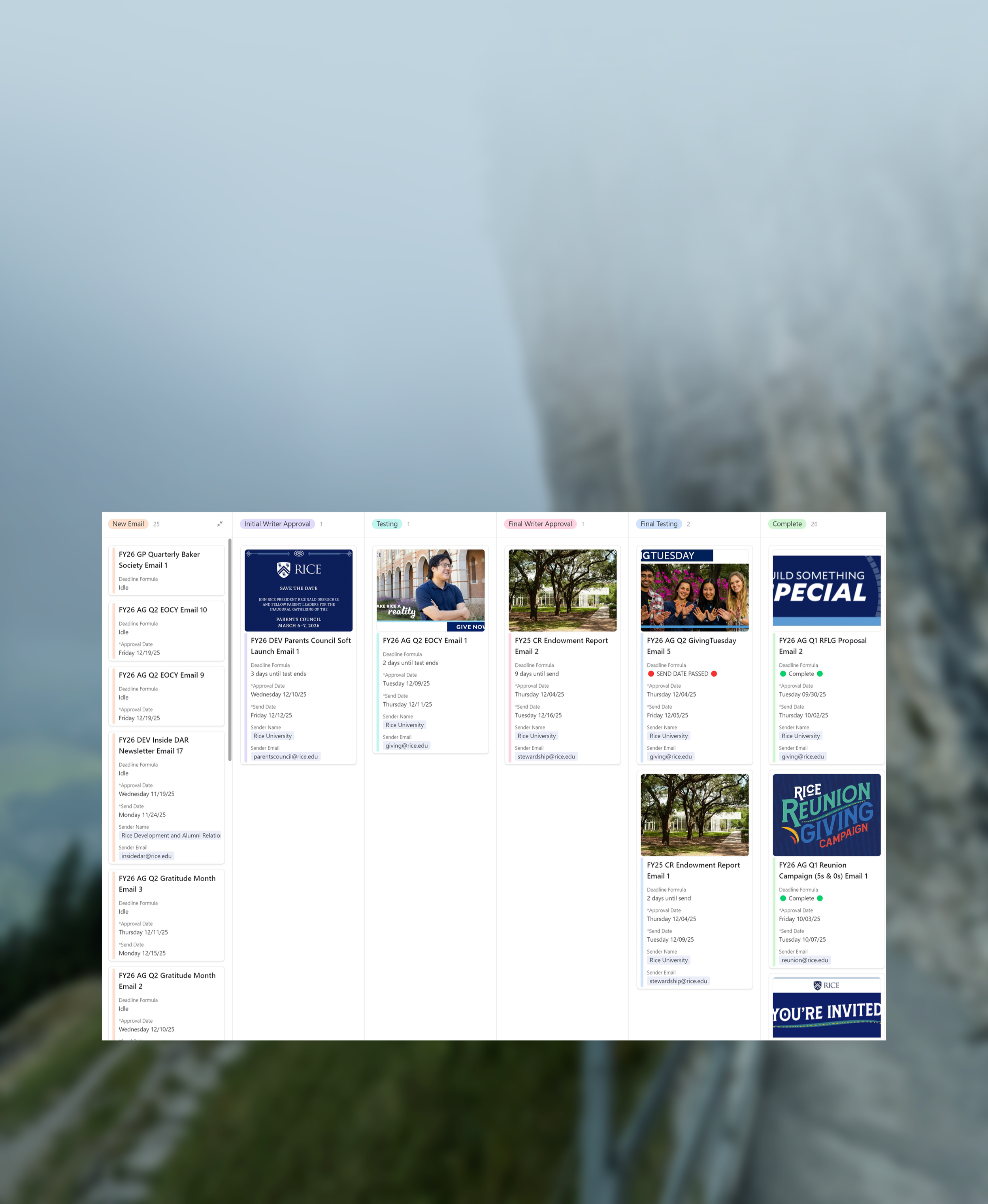
email tracker
Automated Email Management for High-Volume Campaigns
The problem:
Managing email campaigns across multiple projects was increasingly complex. Specific challenges included:
Manual Tracking: Each email had multiple metadata points: Writer, Editorial Reviewer, Content Reviewer, Final Reviewer, CC, Sender Name, Sender Email, Reply Email, Box Link and DME (Direct Marketing Effort) link. It is crucial that these stay consistent throughout the process. Manual tracking/testing created opportunities for errors and required significant time to record, track, and create testing emails.
Scaling Issues: As projects and email series grew, keeping email metadata and task assignments in sync became difficult and time-consuming.
Organized Testing Emails: There was no simple, systematic way to ensure testing emails were consistent, formatted correctly, and easy for reviewers to read.
Goal: Build an automated system that ensures metadata consistency, links email records to Teamwork tasks, and creates standardized test emails to provide clear visibility for all email deliverable stakeholders.
The solution
The system integrates Airtable, Zapier, and Teamwork APIs to fully automate the email testing lifecycle. It maintains consistency, scales effortlessly across campaigns, and provides much more visibility into deliverables for all stakeholders.
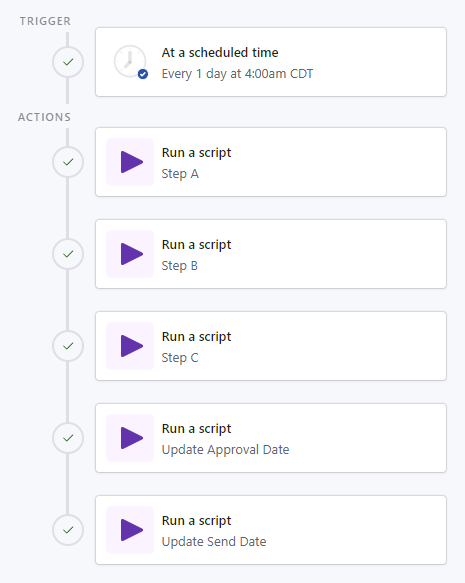
1. Import tasks
New email records are automatically created in Airtable whenever a “Build Email” task in Teamwork is detected. This specific task acts as the trigger for identifying a new email and starting the record creation process, pulling in all associated project and email information from Teamwork to my Airtable database. No manual entry is required by the Digital Content Specialist.
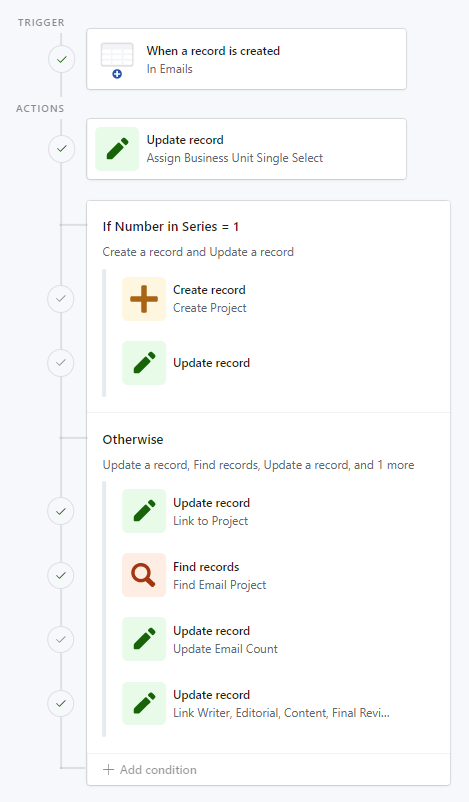
2. Email Metadata Linking
For the first email in a series, a new project is created and linked back to the email.
For emails that aren’t first in the series of that campaign, fields are automatically linked from its parent project:
Writer, Editorial Reviewer, Content Reviewer, Final Reviewer, CC, Sender Name, Sender Email, and Reply Email.
Conditional logic prevents overwriting existing data for emails already in the testing process.
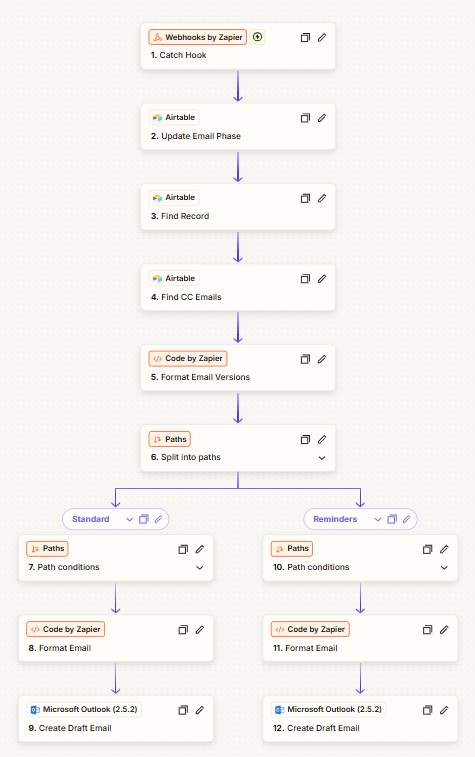
3. Test Email Generation
Button-triggered scripts generate fully formatted testing emails via Zapier, automatically updating the email phase and starting the automated email formatting and creation process.
Each testing phase’s trigger button has unique requirements; the button cannot be pressed if required information for that phase is missing from the Airtable record, preventing incomplete emails from being generated.
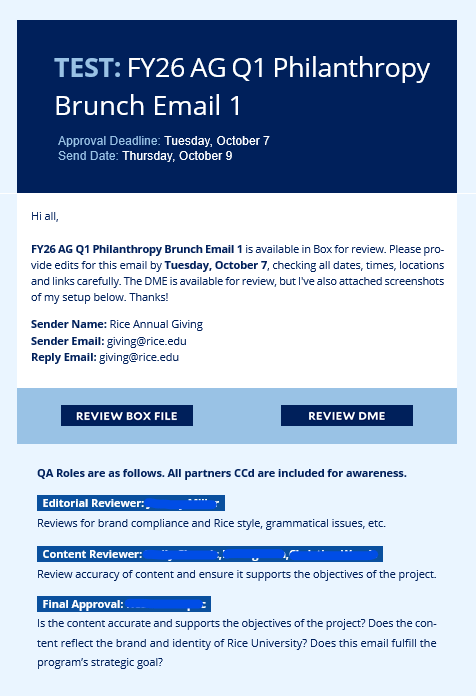
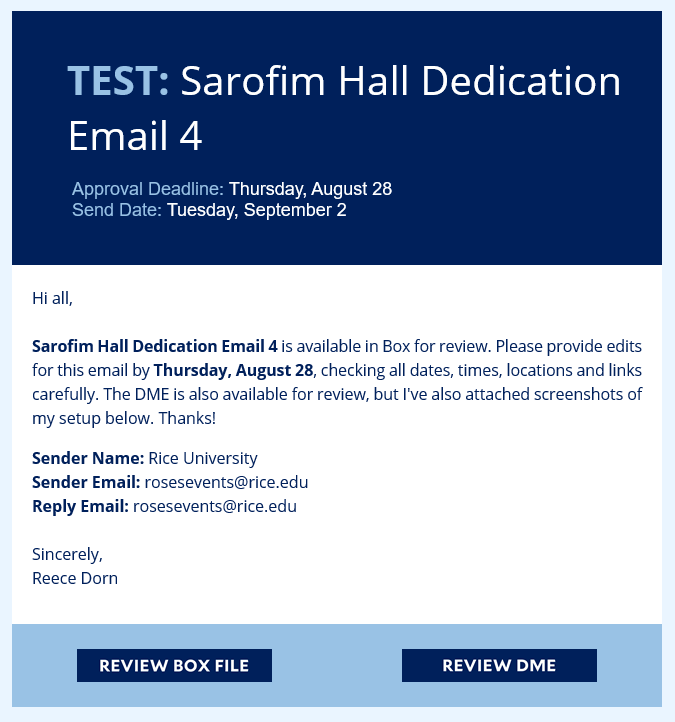
Testing emails dynamically include that email’s sender info, Box and DME links, reply-to fields, and send/approval dates while maintaining consistent formatting across the series.
Impact
Implementing my new system delivered significant internal operational improvements:
Efficiency: Automated linking, metadata updates, and testing email generation reduced my manual work, saving a significant number of hours per campaign.
Accuracy: Centralized email and project details within a shared project record eliminated human errors from manual entry, ensuring consistency across all email records in a campaign.
Collaboration: Project managers and partners gained better visibility into email progress through pre-formatted, easy to digest emails.
Scalability: Supports creation of multiple emails per project without additional manual setup, allowing the system to scale easily. For example, when project information such as reviewers or sender details already exists in a project record, it automatically copies that data into the corresponding email fields of the new project. This saves the Digital Content Specialist time and effort, while ensuring all information stays centralized and consistent.
technical highlights
-
Teamwork API Integration
Pulls the relevant project tasks in, links them to the correct email records, and enables automated task updates based on changes to project or email metadata.
-
Zapier Automation
Pulls all relevant email and project details from email records in Airtable and dynamically populates fully formatted testing emails at each production stage.
-
Airtable Scripting
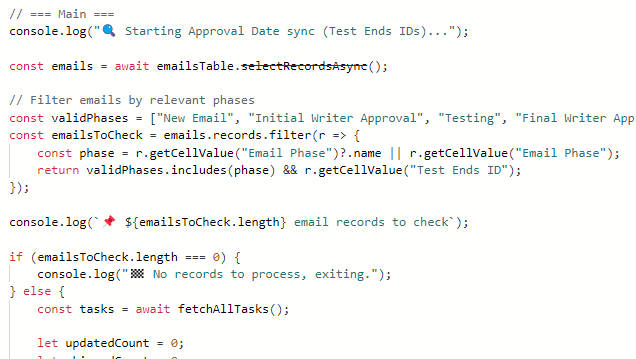
Custom scripts automate task linking, deduplication, and updates to email metadata, ensuring accurate project-email associations.
-
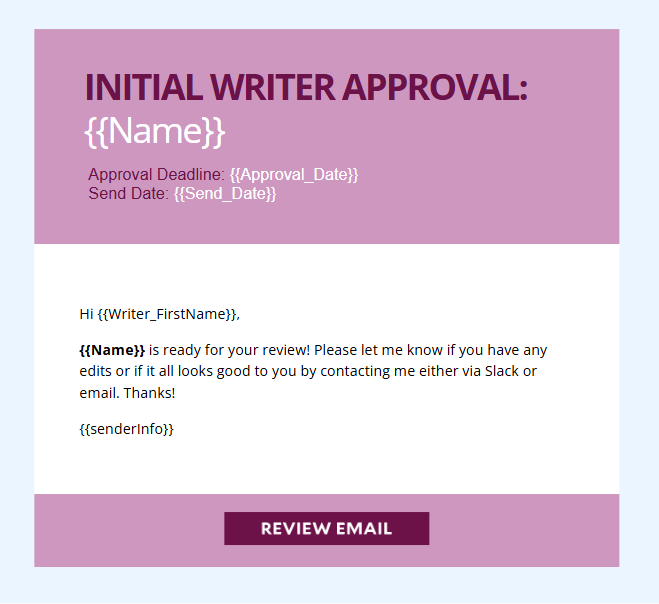
HTML Email Templates
Standardized templates dynamically populate with sender info, approval dates, Box and DME links, and reply-to fields, ensuring consistent formatting across all testing emails.
process deep dive
Exploring the structure, logic, and integrations that make it work
Step 1:
Import tasks
step 1a: find build email tasks
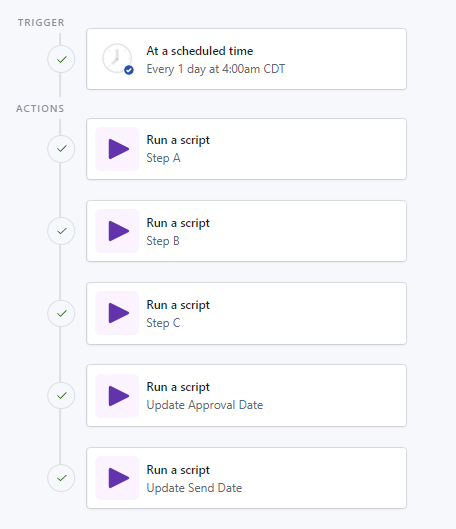
Teamwork API is used to pull in all “Build email” tasks assigned to me. Every time this named task occurs in teamwork, it marks the start of my job in the email creation process. The script notes the Teamwork task ID of the “Build email” (Build Email ID) task itself in addition to the Teamwork ID of the Task List (Task List ID) it inhabits. New email records are created in Airtable for each “Build email” task it filters in, with all relevant info including Project Name, Business Unit, and its number in the email series.
-
Looks up all tasks in Teamwork with the task name of Build Email.
Excludes completed tasks.
Teamwork ID is used to confirm if a task is assigned to me.
-
Tasks are sorted first by Project Name (alphabetical)
Then by Due Date (earlier dates first)
-
Examines all existing email records from the Emails table.
If Build Task ID matches the task ID of the Build email task in question, skip it.
-
Script looks at the abbreviated business unit in the Project Name and correctly assigns it based of the following keywords:
AR → Alumni Relations
AG → Annual Giving
DEV → Development
GP → Gift Planning
EVENTS → Events
OCFR → OCFR
CR → Constituent Relations
Ex. FY26 AG Q1 Reunion Campaign → Annual Giving
-
Checks existing records in Emails field for matching Project Name
From all matches found, it determines the record with the largest number in the Number in Series field (this is how it determines the latest email created).
The task being pulled in is then assigned the next available number (Ex. The latest email created was Email 5 of that series, so the email being pulled in must be Email 6).
-
Fields in the newly created record are populated:
Name (Project Name Email #)
Business Unit
Number in Series
Build Task ID
Task List ID
Project Name
step 1b: find test ends tasks
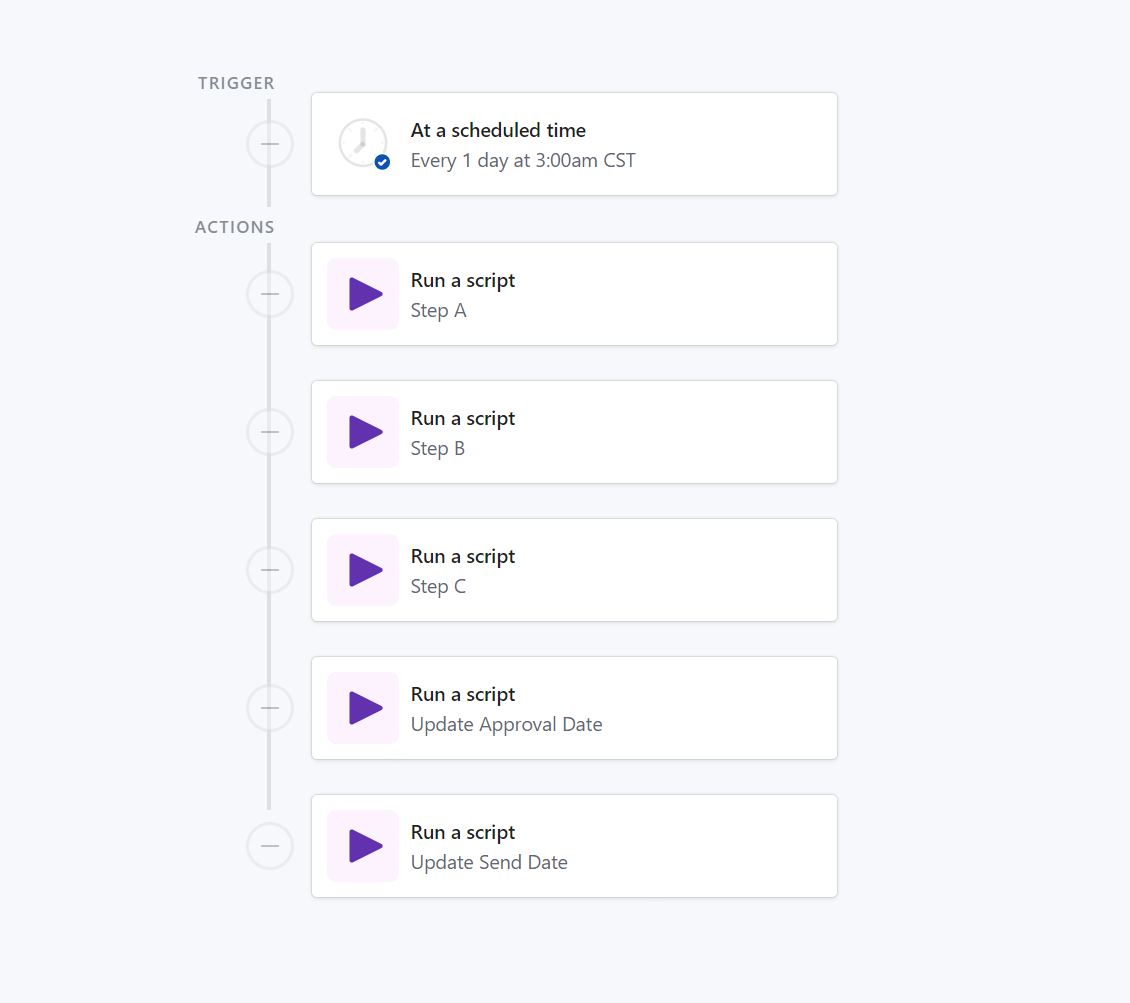
The API then pulls in and assigns my “Test ends” tasks via Teamwork ID to the Email record with the same Task List ID. The due dates of these tasks are logged as the Approval Date.
Fetch Tasks from Teamwork (same as Step A).
Locate all tasks titled “Test ends” and are assigned to me.
Use Task List ID of existing Email records to match the correct “Test ends” task to it.
Updates Email record
Sets Test Ends ID to the “Test ends” task ID
Converts Teamwork’s due date format (YYYMMDD) to Airtable’s date format (YYY-MM-DD) and logs it in the Email record as Approval Date.
step 1c: find send email tasks
The API then pulls in and assigns my “Send email” tasks via Teamwork ID to the Email record with the same Task List ID. The due dates of these tasks are logged as the Send Date.
Fetch Tasks from Teamwork (same as Step A).
Locate all tasks titled “Send email” and are assigned to me.
Use Task List ID of existing Email records to match the correct “Send email” task to it.
Updates Email record
Sets Send Email ID to the “Send email” task ID
Converts Teamwork’s due date format (YYYMMDD) to Airtable’s date format (YYY-MM-DD) and logs it in the Email record as Send Date.
Step 2:
Project creation and linking
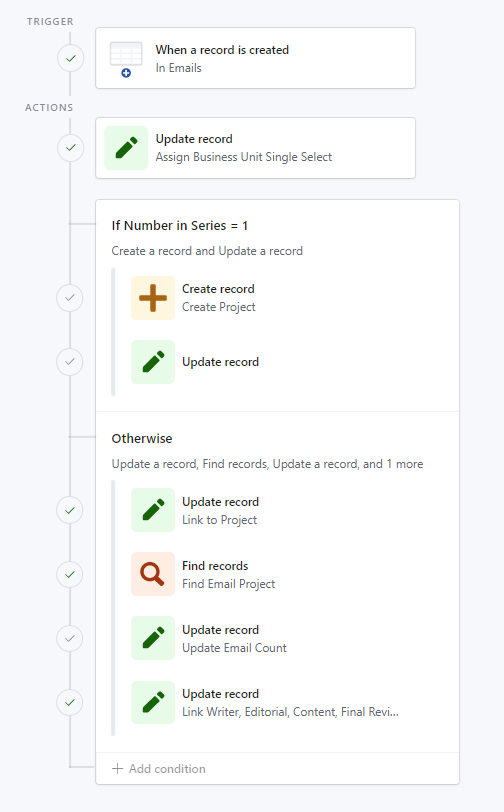
Whenever a new record is added in the Emails table, logic is used to determine whether a new project will have to be made or the newly created email should go into an already created project. If the incoming email isn’t the first in the series, the system checks to see if email info is pre-existing on the project level, such as reviewers and sender info. If any of this info exists, it copies it into the email’s corresponding fields. This will save the Digital Content Specialist time by keeping the information centralized and easily replicable.
If Number in Series = 1
Create new record in Projects table
Name = same as Email name
Business Unit = Same as Email business unit
Email Count set to 1
Created Email is linked to newly created Project
If Number in Series > 1
Find existing project by searching for email Project Name in Projects table
Add 1 to project’s Email Count
Link new email to existing Project
Add project email info into newly created email
Writer
Editorial Reviewer
Content Reviewer
Final Reviewer
CC
Sender Name
Sender Email
Reply Email
Step 3:
*Optional
Record Update
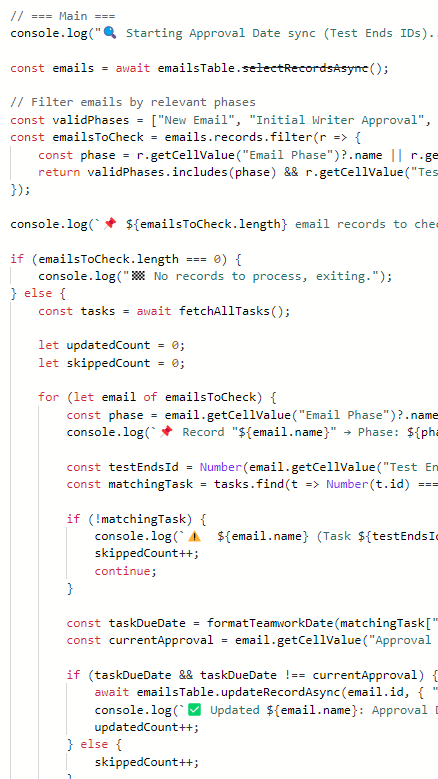
If any “Test ends” or “Send email” task due dates get updated in Teamwork, this part of the automation ensures the Airtable email record dates get updated in parallel. Because Approval and Send Dates are sometimes flexible or the project just gets pushed back, its important the Emails table stays in sync with any Teamwork changes.
The script first only identifies emails in the table that are in either Build email, Test ends or Send email tasks assigned to me. This prevents any unnecessary API fetch requests, as Airtable has a 50-request fetch limit per script run. Next, the script searches for all the “Test ends” tasks connected to my current Emails via their Test Ends ID. If the due date of the Teamwork task is different than the Approval Date in Airtable, the script replaces the Airtable date with the Teamwork date. A second updater script is then run that does the exact same thing as the first, except it looks for Send email tasks via the Send Email ID and updates the Send Date if there’s a date mismatch.
Because this step is connected to the Import Tasks step, it only updates email records once a day. To manually update dates, the “Refresh Email” button within the record view of each email can be pressed to run the above steps.
Step 4:
Testing
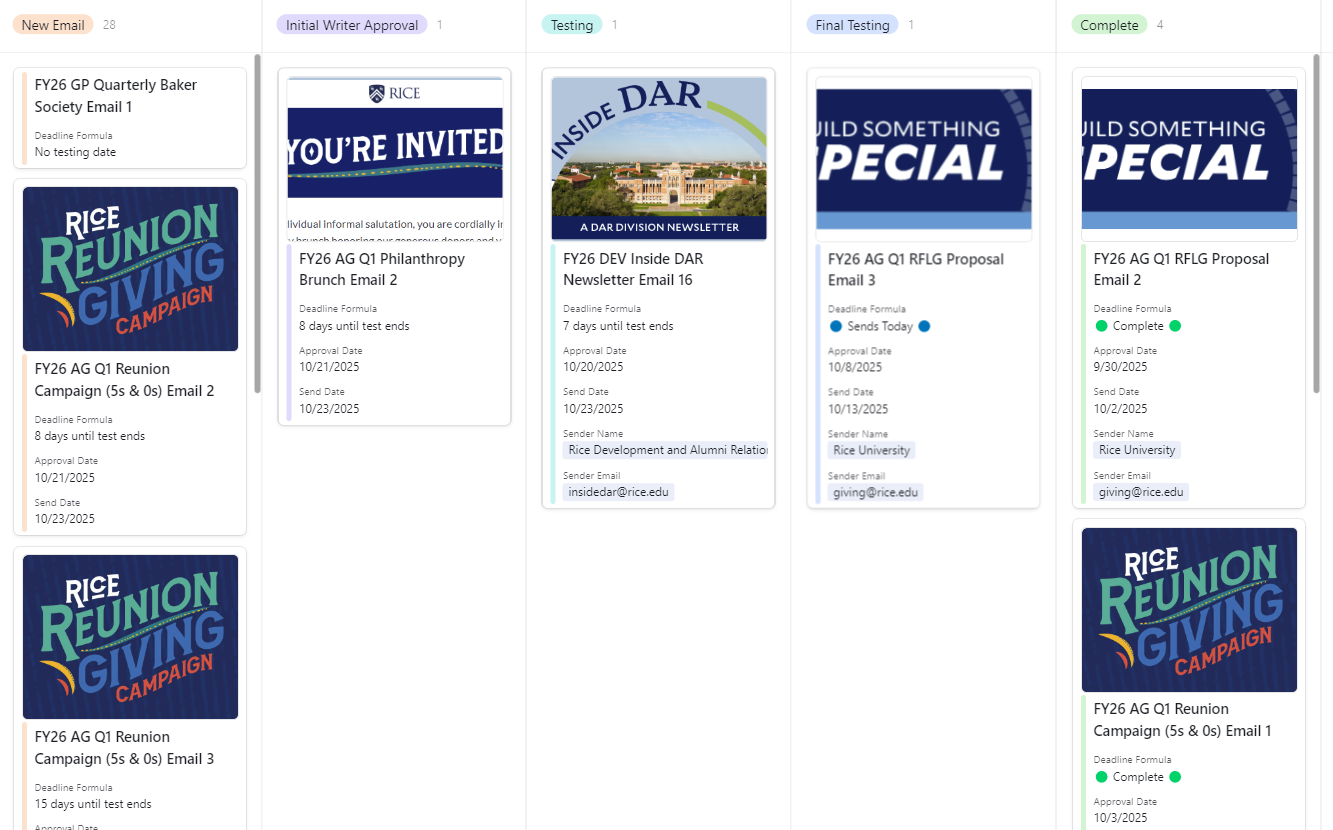
When the Digital Content Specialist is ready to begin building the email, they start by looking in the New Email section of the Email Tracker interface. This contains all emails ready to be built as well as upcoming emails.
As the DCS builds the DME and the emails themselves in Beefree, they add in the necessary email sender and approver info in the appropriate record fields. If this is the first email of the series, this info also gets added to the project’s details when the email starts testing with partners. If this is not the first email of the series, the DCS has the option to press the “Import Project Details” button within the email record view, which then copies all the project information automatically to the new email.
Once the email is ready for an Initial Writer Approval, it can begin the first phase of the official testing process. Each Email record has its own set of testing buttons that trigger different types of testing emails depending on the email phase it’s currently in, utilizing Zapier webhooks.
The whole testing process is essentially as follows:
Digital Content Specialist receives email copy and images from writer
DCS creates the email in Beefree (our email builder) and the DME (Direct Marketing Effort) in OwlConnect (our CRM)
Email copy in Box is tested with Writer for initial approval
Email pdf and DME information shared with larger testing group for edits and approval
Email copy is checked once more by writer for any errors introduced during testing and for any unresolved edits from partners
Live Email tests are created in OwlConnect and reviewed by DCS for accuracy
Live Email tests are then shared with appropriate email and DME info to DCS’s manager and any other final testers
When email is marked as good to go, DCS schedules the email for send

General Zapier Workflow:
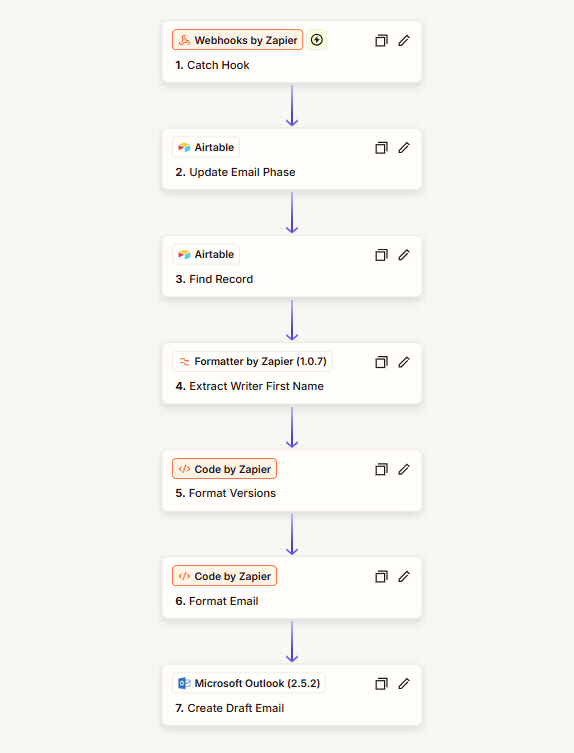
Whenever a button to draft a specific kind of testing email is clicked, in Zapier:
Webhook is caught from Airtable button trigger
Email phase is updated correctly
Airtable record is found based off Record ID passed through Webhook
(Optional) Writer First Name is extracted
Email is formatted with {{inputs}}
Draft email is created in Outlook
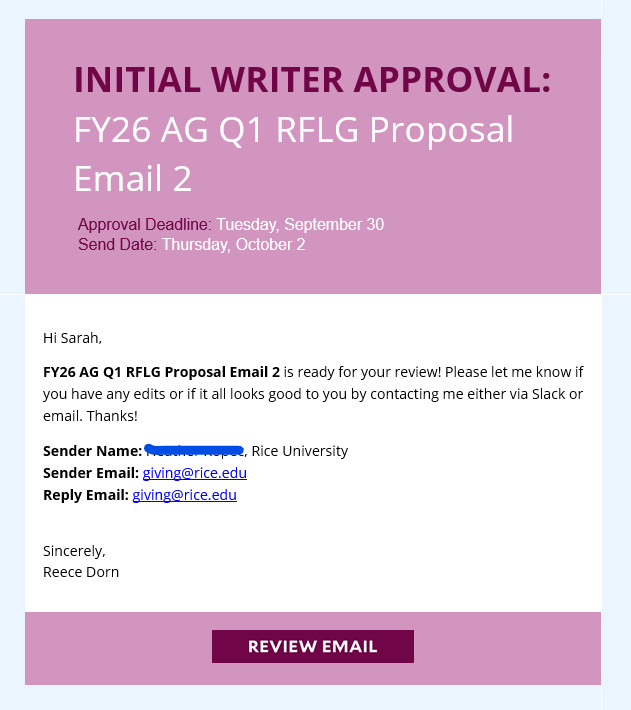
step 4A: Initial Writer approval
First phase of testing. After DCS creates the emails in Beefree and the DME in our OwlConnect email system, the Box link and corresponding email information can be sent to the writer for an initial approval. This first phase is intended to catch small mistakes in the copy or sender information and ensure the writer’s (and potentially the designer’s) vision for the email is captured.
Button can only be pressed if {{Email Phase}} = “New Email” or “Initial Writer Approval”.
-
Hook also sends along Record ID of the email containing the button.
-
{Email Phase} is updated to “Initial Writer Approval” and is then moved into that category in the interface.
-
Zapier uses Record Id from Catch Hook step to retrieve all details from that email including:
Email Name, Approval Date, Send Date, Sender Name, Sender Email, Reply Email, Box URL, and DME URL
Approver information is also captured including:
Writer Name and Email
-
First word is extracted from Writer Name field.
-
Airtable script takes Beefree email template HTML code and replaces any instance of and {{input}} value with the dynamically pulled in info from the (3) Find Record step.
Email Name, Writer First Name, Approval Date, Send Date, Sender Name, Sender Email, Reply Email, and Box URL are all email field values pulled through in this phase.
-
Outlook draft is created in the Digital Content Specialist’s (my) inbox for review and any additional notes that might need to be shared.
“To:” Outlook field is automatically filled out with the writer’s email
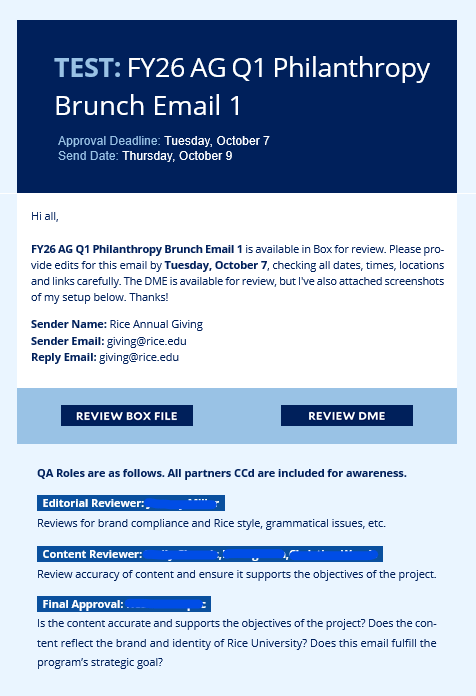
step 4b: Testing
Second phase in testing. Once the email looks good to the writer, the DCS can proceed with formal testing. The editorial, content, and final approvers all receive an email with the corresponding email details, a link to the Box file for reviewing/approving the copy, and a link to the DME to review/approve the Audiences and Exclusions. Partners will leave edits in the form of comments in Box for the DCS.
Button can only be pressed if {{Email Phase}} = “New Email”, “Initial Writer Approval”, or “Testing”.
-
Hook also sends along Record ID of the email containing the button.
-
{Email Phase} is updated to “Testing” and is then moved into that category in the interface.
-
Zapier uses Record Id from Catch Hook step to retrieve all details from that email including:
Email Name, Approval Date, Send Date, Sender Name, Sender Email, Reply Email, Box URL, and DME URL
Approver information is also captured including:
Editorial Approver Name and Email
Content Approver Name and Email
Final Approver Name and Email
CC Emails
-
Zapier searches in Directory table for those who have the email’s Business Unit as a value in the Directory’s CC field
Most of those with this tag are part of that Business Unit’s team and need to be CC’d on every testing email for awareness. This step makes it unnecessary to enter in every relating teammate in each Email’s CC field.
-
Airtable script takes Beefree email template HTML code and replaces any instance of and {{input}} value with the dynamically pulled in info from the (3) Find Record step
Email Name, Approval Date, Send Date, Sender Name, Sender Email, Reply Email, Box Link, and DME Link are all Email field values pulled through in this phase.
Underneath the email details are the approver roles. The approvers’ (editorial, content and final) names are also dynamically pulled in and matched to their correct approver role.
-
Outlook draft is created in the Digital Content Specialist’s (my) inbox for review and any additional notes I might need to share.
Outlook “To:” and “CC” fields are automatically filled based on approver’s and CC’s emails.
Emails could go down one of two paths: Standard and Reminders.
Standard emails are ones that need to be approved by all the approvers every time because the copy is different.
Reminders emails are usually emails that are after an initial invitation for an event. They have the exact same copy as the previous email in that project’s email series, but is sent as a “Reminder” or “Final Reminder” to those from the first email’s audience who have not registered yet. The testing email that gets sent down this path just reflects this information, as no action is needed, but links to the DME and the Box file of the invitation are still available.
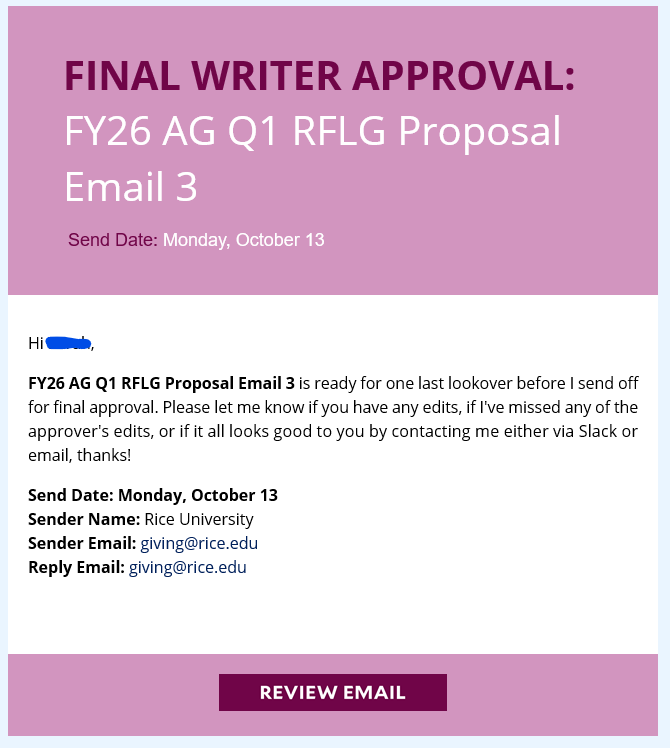
step 4C: Final Writer approval
Third phase of testing. When DCS has made all of the partner edits and tagged them in Box to notify, the new version must be approved by the writer once more as one additional check to make sure no copy errors were introduced and all partner edits were addressed.
Button can only be pressed if {{Email Phase}} = “Testing” or “Final Writer Approval”.
-
Hook also sends along Record ID of the email containing the button.
-
{Email Phase} is updated to “Final Testing” and is then moved into that category in the interface.
-
Zapier uses Record Id from Catch Hook step to retrieve all details from that email including:
Email Name, Approval Date, Send Date, Sender Name, Sender Email, Reply Email, Box URL, DME URL, and the Live Email Test(s)
-
Zapier searches in my Airtable Directory table to find anyone who has Final Tester (ALL) in their Role field.
If the Business Unit is Annual Giving, Zapier also searches for Final Tester (AG), because an extra final tester is pulled in for these specific final tests.
-
Airtable script takes Beefree email template HTML code and replaces any instance of and {{input}} value with the dynamically pulled in info from the (3) Find Record step
Email Name, Approval Date, Send Date, Sender Name, Sender Email, Reply Email, Box Link, DME Link, and Live Email Test are all Email field values pulled through in this phase.
-
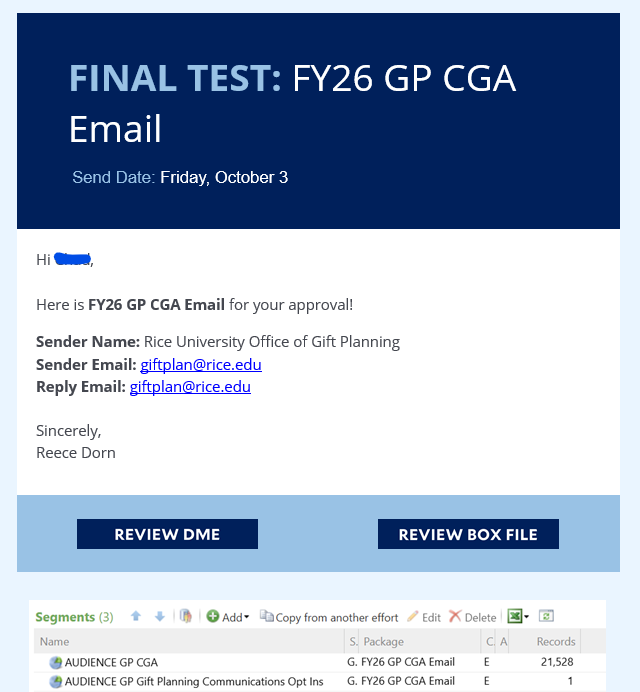
Outlook draft is created in the Digital Content Specialist’s (my) inbox for final review with the Live Email Test attached and any additional notes I might need to share.
Outlook “To:” and “CC” fields are automatically filled based on Final Tester’s email.
Emails could go down one of two paths: Standard and Reminders, but this is just for email formatting purposes, the content of the email is essentially the exact same.
step 4D: Final Testing
Fourth phase in testing. Once the email looks good to the writer, the DCS can proceed with final testing with the Digital Content Specialist manager and other optional final testers. The DCS sends live emails through the OwlConnect email system to have an exact copy of what will go out and how it will look. The most crucial things for the DCS to look for is the subject line/preheader, sender name and email, links, unsubscribe link, merge tags (if included), and that the mobile view looks good too. Three checkboxes with this info and a Live Email Test record field are included in the email record. The DCS must check each box and upload the live tests (in a .msg format) before the Final Testing button can be pressed.
The final reviewers will then receive an email with all the email details, a link to the Box files for making sure all edits have been made and all partners have approved the copy, and a link to the DME to review the Audiences and Exclusions once more. If the live tests look good to the manager, the email can then be activated in OwlConnect and then sent.
Button can only be pressed if {{Email Phase}} = “Final Writer Approval” or “Final Testing” AND all three Digital Content Specialist Approval boxes are checked and has live email tests included.
-
Hook also sends along Record ID of the email containing the button.
-
{Email Phase} is updated to “Final Writer Approval” and is then moved into that category in the interface.
-
Zapier uses Record Id from Catch Hook step to retrieve all details from that email including:
Email Name, Send Date, Sender Name, Sender Email, Reply Email, and Box URL
Approver information is also captured including:
Writer Name and Email
-
First word is extracted from Writer Name field.
-
Airtable script takes Beefree email template HTML code and replaces any instance of and {{input}} value with the dynamically pulled in info from the (3) Find Record step.
Email Name, Writer First Name, Send Date, Sender Name, Sender Email, Reply Email, and Box URL are all email field values pulled through in this phase.
-
Outlook draft is created in the Digital Content Specialist’s (my) inbox for review and any additional notes that might need to be shared.
Step 5:
Email
Complete
The Complete Email button can then be pressed and the Email Phase status is updated to Complete. This email doesn’t go away completely however, as it is important to keep a record of previous sends for future campaign creation reference. Many emails the Mar-Comm team works on are annual efforts so having a past record helps us determine content and strategy for the next time we work on a specific project.